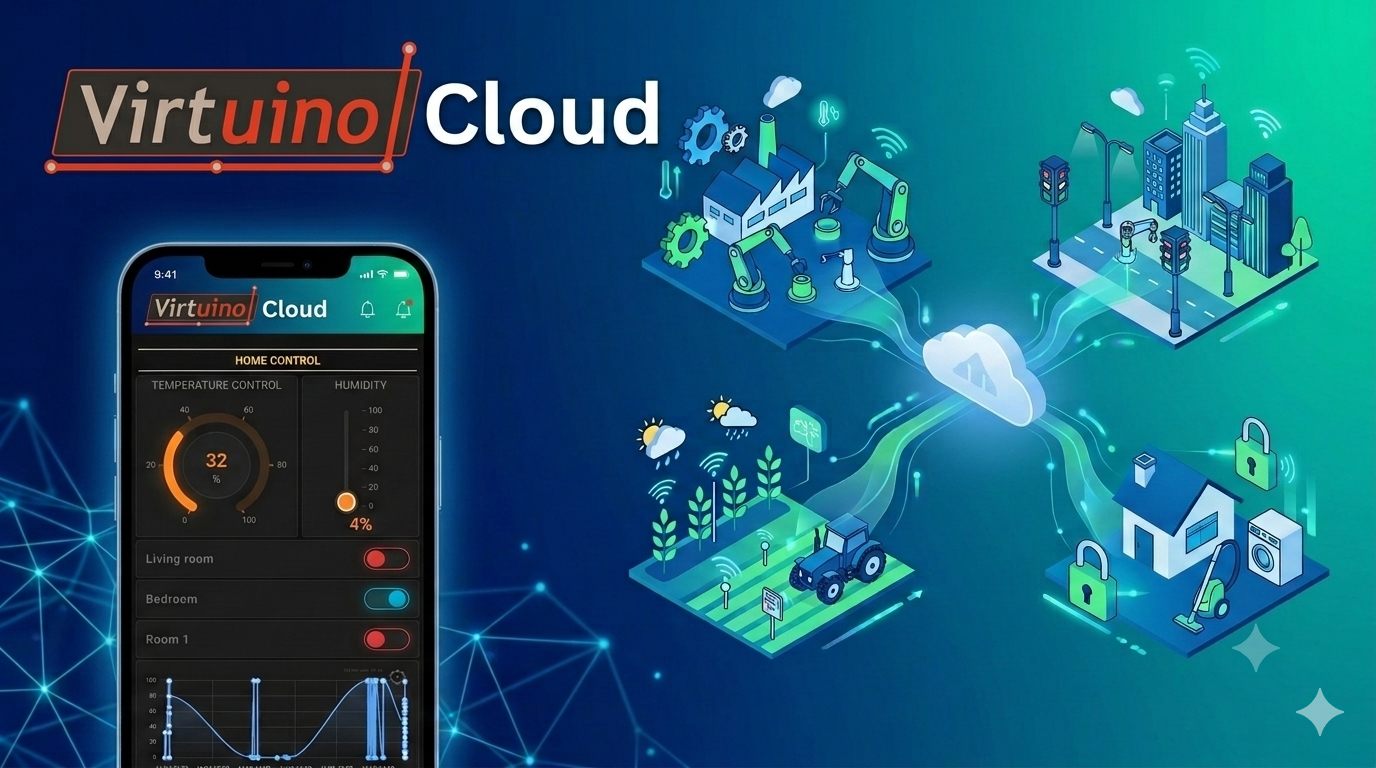
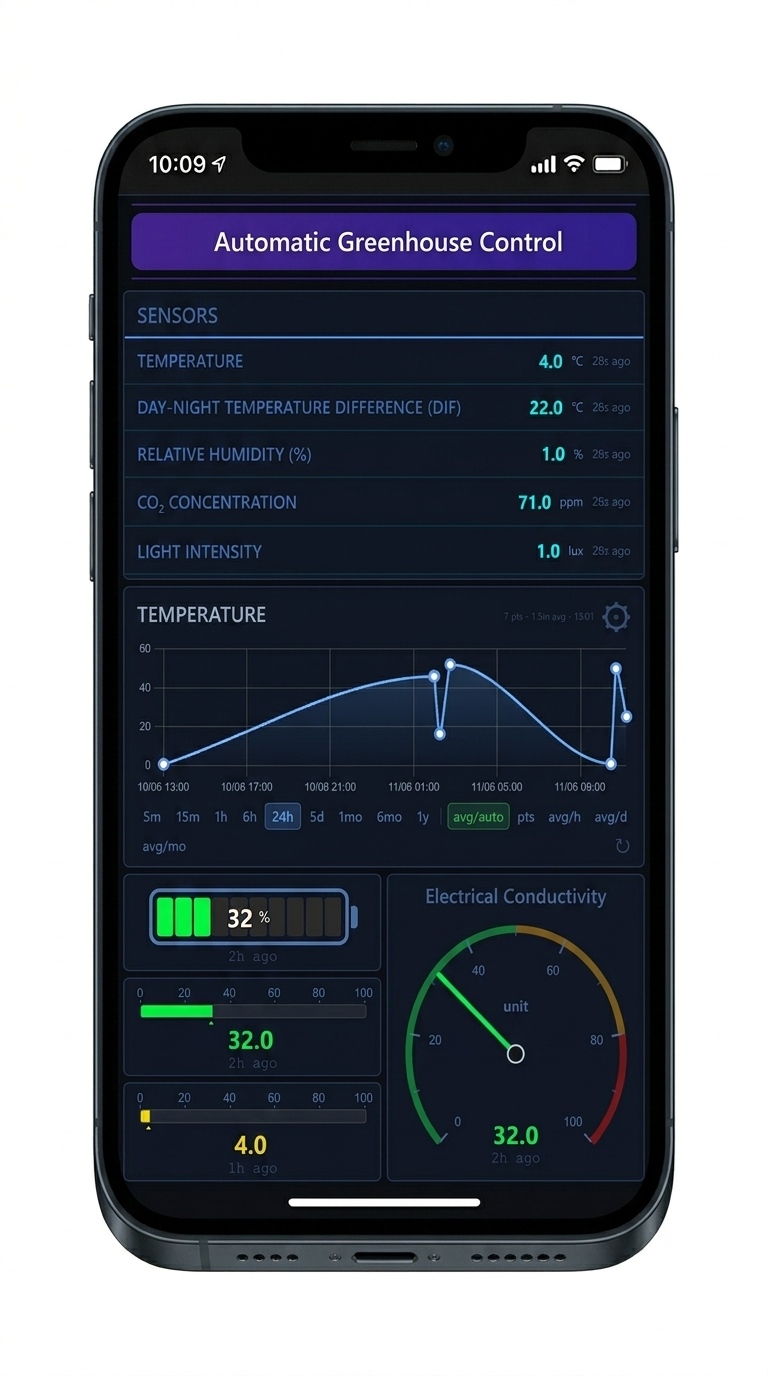
Open any Virtuino Cloud dashboard on your phone — no account needed. Just a main or sub-account key and a password. Monitor sensors, control devices, and get alerts on the go.
The Virtuino app turns every dashboard you build on Virtuino Cloud into a polished mobile experience. There is no separate account for app users — anyone you trust simply enters your main or sub-account key and a shared app password, and instantly sees the dashboards you chose to publish. This guide explains the experience for both kinds of people involved: the main user (the owner who builds and shares) and the sub user (the viewer who just wants to monitor and control).
In one sentence: the main user flips a few switches in the web console to decide what is visible and sets a shared password; the sub user opens the app, types the main or sub-account key + password, and uses the dashboards — nothing to install on a server, no per-person accounts.
Understanding these two roles makes everything else clear.
Main User Owner
The person who owns the Virtuino Cloud account, builds the dashboards, and connects the devices. The main user works in the web console and decides:
Which dashboards appear in the app (the “In app” switch).
The shared app password that viewers will type.
Whether dashboards auto-fit the phone screen.
The icon and description each dashboard shows in the app's list.
Sub User Viewer
Anyone the owner shares access with — a family member, a technician, a client. The sub user only needs the Virtuino app and two things from the owner:
The main or sub-account key (acts as the username).
The app password (a shared access code, like a Wi-Fi password).
They can view live data and control devices on the published dashboards — but cannot edit structure, scripts, or settings.
2. For Sub Users — how to use the app
If someone gave you a main or sub-account key and a password, here is everything you need.
Install the app. Download Virtuino from Google Play or the App Store (badges at the top of this page).
Enter the account key. On the login screen, type the account key the owner gave you in the “Account Key” field — this is your username.
Enter the app password. Type the shared app password. Tick “Don't ask me again on this device” to stay logged in next time.
Pick a dashboard. You'll see the list of dashboards the owner published, each with its icon and description. Tap one to open it.
Monitor & control. The dashboard opens full-screen, fit to your phone. Read sensors, flip switches, move sliders — exactly like the web, but optimized for mobile.
Use the top icons. Inside a dashboard: Alert logs — the alerts of this dashboard's rules, with a badge counting the unread ones — and Refresh. On the dashboard list, Exit returns to the login screen, where you can also sign in with a different account key.
No account, no setup. As a sub user you never create a Virtuino account. The main or sub-account key + app password are all you need, and “Don't ask me again” keeps you signed in on your device.
What the dashboards look like
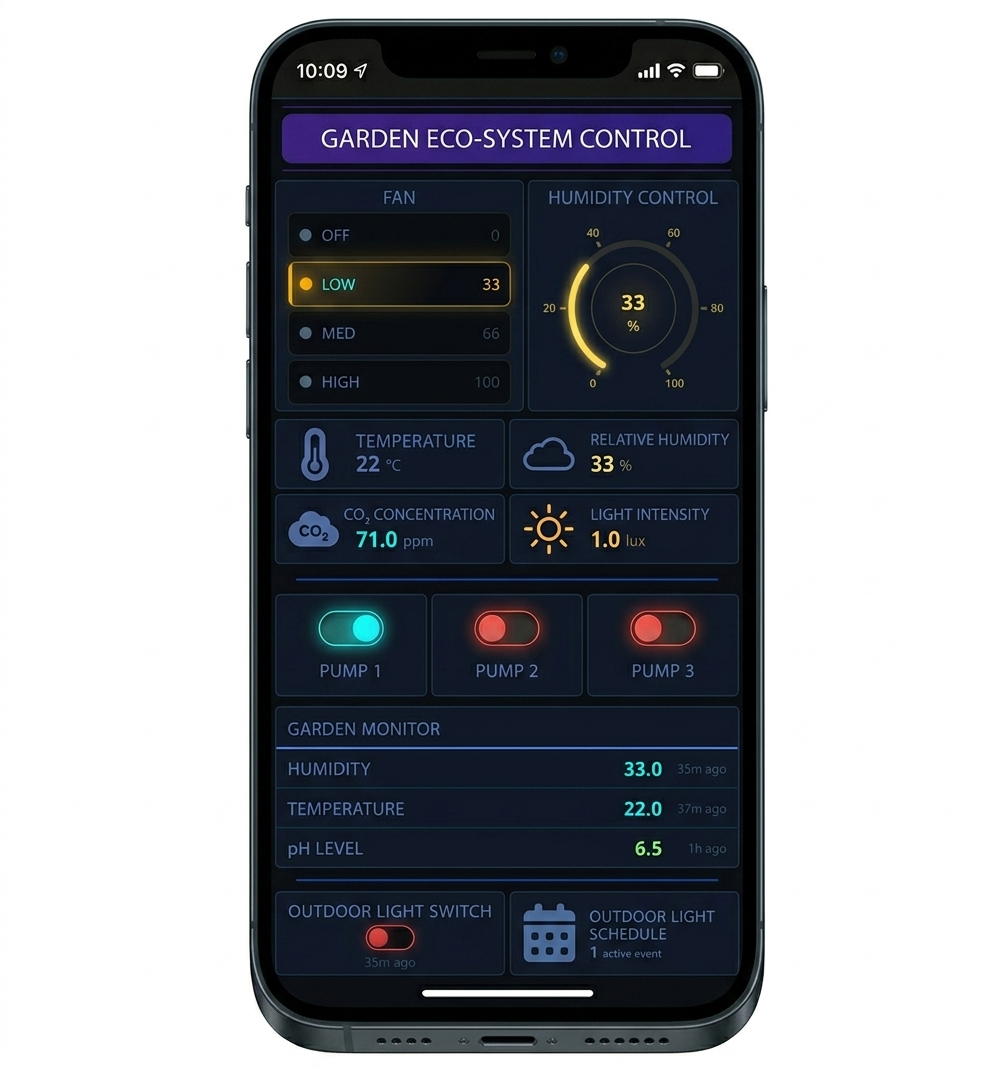
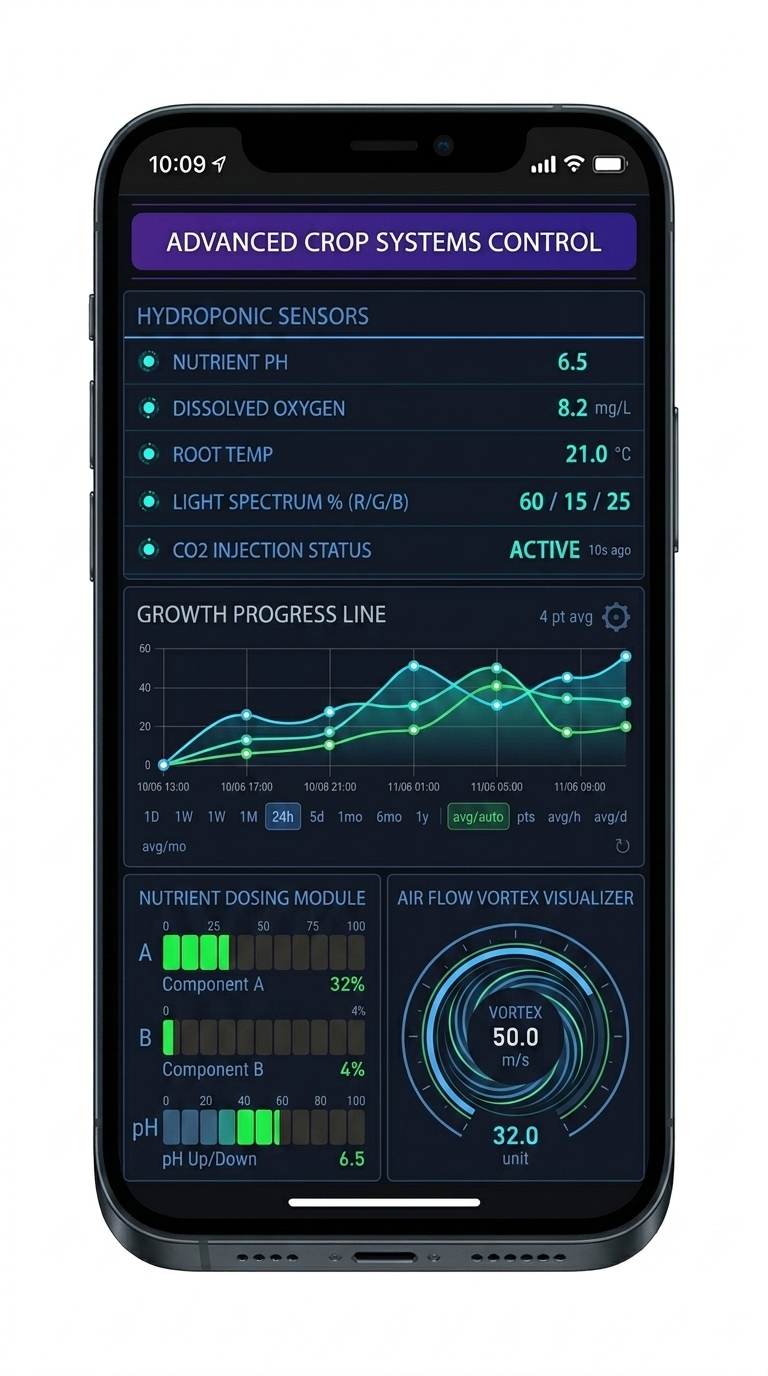
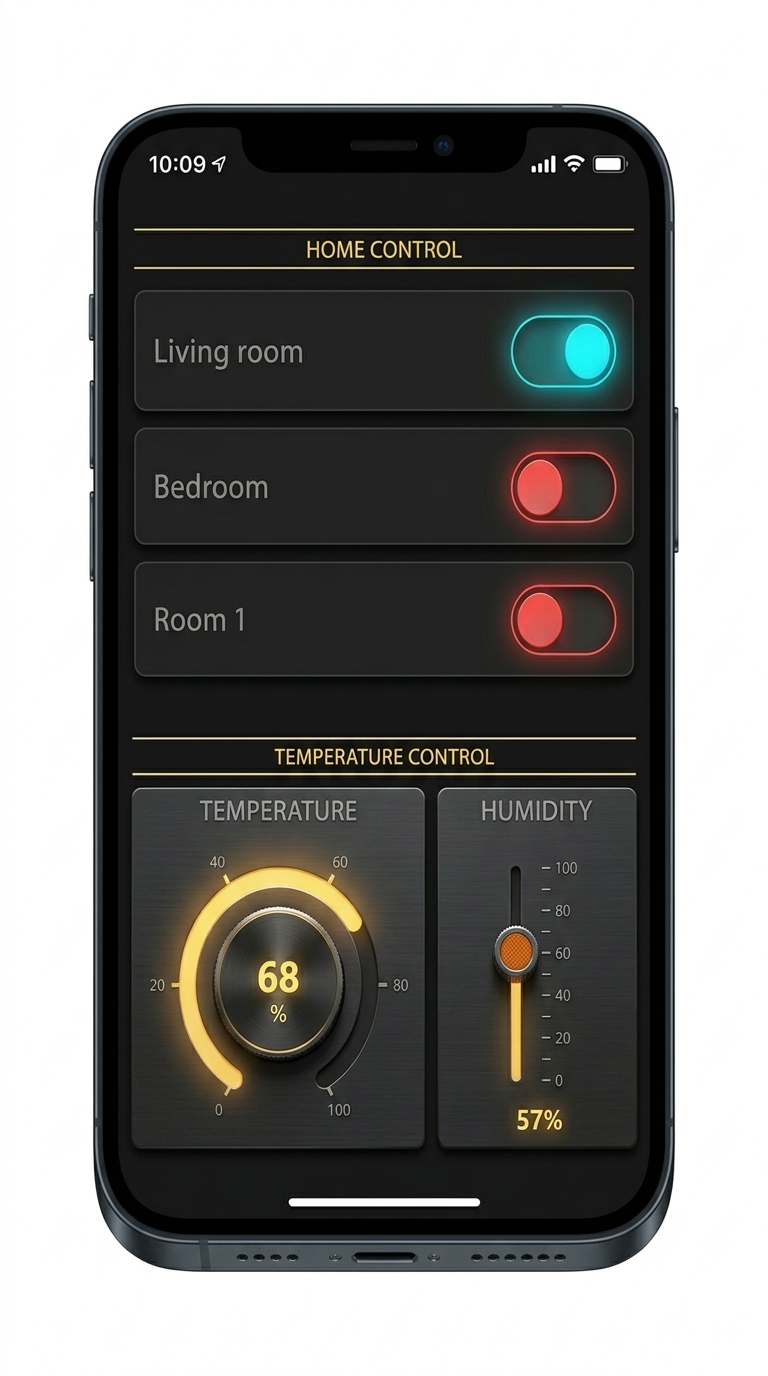
Here are real dashboards running inside the app — built entirely by main users on Virtuino Cloud:
3. For Main Users — publishing dashboards to the app
Everything is configured from User Console → Dashboards (/user-console/dashboards.html). You only need to do this once; viewers then connect with the app immediately.
Open “App Settings”. In the dashboards toolbar click the App Settings button.
Select the customer. In the modal, choose the customer from the dropdown. The customer's main or sub-account key becomes the username sub users will type.
Set the app password. Type a password (min 6 characters) and click Save password. Use Copy to share it. This is a shared access code — it stays visible on purpose so you can hand it out.
(Optional) Fit to width. Turn on “Fit all dashboards to width” so every dashboard auto-zooms to the phone screen — no horizontal scrolling.
Choose which dashboards appear. Back in the list, use the “In app” toggle on each dashboard row. It is ON by default — turn it off to hide a dashboard from the app. Only dashboards with status Active appear.
(Optional) Icon and description. In each dashboard's Edit window, the description and the icon (a Font Awesome name such as fa-seedling) are what the app shows in its list.
Share the credentials. Send the viewer the main or sub-account key + app password. Done — they can open the app right away.
The app password is mandatory. A main or sub-account key alone is not enough protection, so the app requires a password the first time it's opened. If you remove the app password, app access is disabled until you set a new one.
4. Every app option in the console, explained
This is a complete reference for the app-related controls on the Dashboards page.
“App Settings” button Toolbar
Opens the App Settings panel. Everything that controls the companion app login lives here. It is per-customer, so if you manage several customers you configure each one separately from the dropdown.
Customer (username = main or sub-account key) App Settings
Selects which customer you're configuring. The selected customer's main or sub-account key is the username that sub users type into the app. Settings below apply to that customer only.
App password shared codeApp Settings
The access code viewers enter alongside the main or sub-account key. Key points:
Minimum 6 characters.
It stays visible (like a Wi-Fi password) so you can Copy and share it — it is not a secret personal password.
Save password stores it · Copy copies it to share · Remove deletes it (which disables app access until you set a new one).
It is the same code for everyone who should access this customer's dashboards.
Fit all dashboards to width App Settings
A toggle that makes every dashboard auto-zoom to fit the phone width, so there's no left-right scrolling. Recommended for dashboards designed wide for desktop. Applies to all of this customer's dashboards in the app.
“In app” column toggle default ONDashboard list
A per-dashboard switch in the list (next to Status). When ON, that dashboard appears in the app; when OFF, it's hidden from app users while staying fully usable on the web. New dashboards are included by default. Shared/guest dashboards show - here (they're managed through the web share link instead).
Icon & description Edit dashboard
Each dashboard's description and icon appear in the app's dashboard list, so viewers can tell them apart at a glance. The status must be Active for the dashboard to appear.
Export to app Dashboard menu
Turns one dashboard into its own white-label app, with the account key built in. It has its own access setting, independent of the app password above: Save password makes the app ask for that password, Open without password opens the dashboard directly. You then download the source, paste the generated config and build — see Build a single-dashboard app.
The web Share password does not apply in the app. A dashboard's password in its Share settings protects only the public web link. In the app, the app password opens every dashboard with “In app” ON. To keep a dashboard away from app viewers, turn its “In app” toggle OFF — or keep it under a different sub-account, which has its own key and its own app password.
How the pieces fit together:
Account key = username (from the main or sub-account).
App password = shared gate into that account's dashboards.
“In app” = which dashboards are visible.
Icon & description = how they appear in the list.
Fit to width = how they're displayed.
5. Real-world examples
Example A — A grower sharing a greenhouse with two technicians
The grower (main user) builds the “Automatic Greenhouse Control” dashboard and a “Garden Eco-System” dashboard.
In App Settings they set the app password to green-2026 and turn on Fit to width.
They leave both dashboards' “In app” toggles ON.
They send each technician the main or sub-account key + green-2026.
Each technician installs Virtuino, logs in once, and monitors humidity, CO₂, and pumps from their phone — controlling pumps when needed.
Example B — A smart-home owner with a private dashboard
The owner publishes a “Home Control” dashboard for the whole family (In app: ON).
They also have an “Advanced Crop Systems” dashboard they want only for themselves — they turn its “In app” toggle OFF. For their own phone they keep that dashboard under a separate sub-account, which has its own key and its own app password.
The family uses the shared app password for everyday lights and temperature; the private dashboard never appears in their app.
Tip: Because the app password is shared and easy to rotate, you can change it any time (e.g., when a technician leaves) and simply hand out the new one — no per-person account management. The change takes effect immediately: an app signed in with the old password can no longer open or refresh a dashboard or fetch its alerts, and asks to sign in again. A dashboard already on screen keeps showing live values until it is closed or refreshed. Removing the app password works the same way.
6. Build your own app (open source)
The Virtuino app is open source. Advanced users can download the source, customize the UI with their own branding, and even lock the app to a single customer (your main or sub-account key baked in) — perfect for delivering a white-label app to a client.